Thursday, August 4, 2016

AEM6 | Integration with Translations.com

Translations.com's GlobalLink Project Director integrates with Adobe Experience Manager, providing users with a powerful solution to initiate, automate, control, track, and complete all facets of the translation process.


Refer the following links for more details-
http://www.translations.com/products/globallink-AEM-adaptor,
http://www.translations.com/globallink/partners/adobe.html

Translations.com provide packages (in Zip farmat) which can be installed through AEM package manager. They provide two packages- 

a.       GlobalLink-Adaptor-4.7.6.zip (Check the latest packages from TDC site)

b.      GlobalLink-Workflows-2.1.zip (Check the latest packages from TDC site)

Please note that this is not an open source product and you need to contact to TDC to get these packages. Once packages installed, required page templates will be available. Look at the screenshot below-


You need to create pages for each template under /content/global-link (Their latest Adaptor package doesn't need this activity. Their configuration is available from /projects.html page of the AEM instance)-


Configuring Translation.com

First add the new Translation vendor to Translation configurations-


  • On the rail, click or tap Tools > Operations > Cloud > Cloud Services.
  • In the Adobe Marketing Cloud/Translation Integration area, click or tap Show Configurations.
  • Click the + link next to Available Configurations.
    file
  • Type a title for your configuration. The title identifies the configuration in the Cloud Services console as well as in page property drop-down lists. The default name is based on the title. Optionally, type a name to use for the repository node that stores the configuration. 
  • Click Create.
  • On the configuration page, click Edit.
  • On the Translation Integration Configuration tab, select the translation provider, and select the category to use for translating the content.  
  • (Optional) On the User Generated Content tab, select the repository node where the original user-generated content and the translations are stored.
  • Click OK.

  • Now, Go to the Adaptor configuration page in AEM- http://localhost:4502/content/global-link/globallink-adaptor-configuration.html and enter required details for TDC web service URL, account user name, password etc. Screen also asks you to define a language key mapping and properties to include for translation.

    Scheduling Translations

    I am taking here an example of Asset's description metadata field. To submit asset's “description” metadata for translation, follow below steps-

    2. Fill in required details.  Click on the “Find Metadata” button; it will show up the result assets available for translation. Only those assets will be listed which have description property set.
    3.       Expand the asset(s), and check the metadata fields need to be send for translation. Next, move to the “Target Languages” drop-down and select the desired languages. Click on the “Start Workflow” button to initiate the translation workflow. Look at the screenshot below-


    4.       After this, go to TDC submission list page to check status- http://localhost:4502/content/global-link/globallink-adaptor-submissions-list.html. 

    Verifying Translation

    Translation workflow will update node properties sent for translation with translated text automatically once response is received.

    In order to display translation in front end, you can customize AEM UI to show translated data. In this example I will add a new tab named "Alt Text Translation" to show all Alttext translations to the author. 


    Select "Default" (You can pick image, forms etc. depending on your requirement) and Click on pencil icon to edit it. 

    1. Use the "+" icon next to tags in left hand screen to add a new tab- "Alt Text Translation"
    2. Use the "Build Form" in right hand screen to add language fields.

    Look at the below snapshot on how should it look-


    Once you have saved the metadata template, you can go to Asset Properties from Assets section. The properties section will look like this-


    Note: This article is based on integration of an older version of Translations.com Global Link Adaptor. While working with new adapter version, all above steps may not be required.

    Tuesday, August 2, 2016

    Bulk Editor/ Searching pages based on Parameters

    Bulk editor helps you in editing pages in bulk. Based on query parameters, you can search for pages under a root path and then you can edit properties of those pages. It provides you option to add conditions to fetch list of pages. You can also select additional columns to be displayed in reports.

    Bulk Editor URL: http://localhost:4502/etc/importers/bulkeditor.html


    Below is an example to search all pages with title as "Features"-


    Once the result come; you can edit the property values by double clicking them. Once you are done click on "Save" button. Look at the snapshot below-


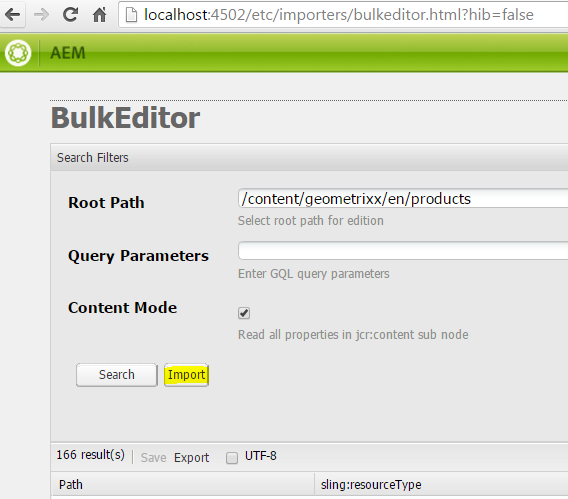
    Alternatively, you can use "Export" option to download the result list as TSV file. Then you can modify the values in Excel and then Import it from the following URL-

    Bulk Import URL: http://localhost:4502/etc/importers/bulkeditor.html?hib=false


    You can also create a new TSV file in proper format and Import it using the above URL. While doing so you ought to be very careful to not override any unintended value/ property.

    Monday, August 1, 2016

    XSS Protection in AEM6

    XSS (Cross Site Scripting) protection in AEM to  prevent attackers to inject code into web pages viewed by other users, is based on AntiSamy Java library provided by OWASP (Open Web Application Security Project). Due to this sometime you may get following kind of errors:
    org.apache.sling.xss.impl.HtmlToHtmlContentContext AntiSamy warning: The iframe tag contained an attribute that we could not process. The src attribute had a value of "some-non-xss-standard-iframe-url". This value could not be accepted for security reasons. We have chosen to remove this attribute from the tag and leave everything else in place so that we could process the input.

    Most basic configurations for XSS protection is configured out of the box. In case you need to happen to change this, you can override these configurations but do it carefully because these configurations apply globally. The default AntiSamy configuration can be found at following location in AEM- /libs/cq/xssprotection/config.xml. For reference, XSS rules are defined like this:
    <!-- START: Additions for oembed inserts -->
    <regexp name="iframesrc" value="^(http:|https:)?\/\/(www\.)?(((youtube|youtube-nocookie|vimeo|player\.vimeo|dailymotion|instagram|tumblr|twitter|wordpress|facebook|wikipedia|stackoverflow)(\.com))|(flickr\.com|flic\.kr))\/([A-Za-z0-9]).*"/>
    <!-- END: Additions for oembed inserts -->

    This article categorizes the protection mechanism into two parts-

    1. Code Level Protection

    A. Use the features/ methods provided by XSS API in you AEM application JSP, Servlets, Services etc. while processing user inputs, page selectors etc. XSS API provides two type of features- encoding and validation. In general, validators are safer than encoders. Encoding only ensures that content within the encoded context cannot break out of said context. It requires that there be a context (for instance, a string context in Javascript), and that damage cannot be done from within the context (for instance, a javascript: URL within a href attribute.

    In Java code-
    import com.adobe.granite.xss.XSSAPI;
    import org.apache.sling.api.resource.ResourceResolver;
    
    public class UserInput {
      public String getFilteredURL(ResourceResolver resolver, String userInputText) {
        XSSAPI xssAPI = resolver.adaptTo(XSSAPI.Class);
        return xssAPI.getValidHref(userInputText);
      }
    }
    

    In JSP Code-
    <%@ include file="/libs/foundation/global.jsp" %><%
    %><%
        String siteTitle = request.getParameter("siteTitle");
        String websiteLink = request.getParameter("websiteLink");
    %>
    <html>
        <head>
            <title>
                <%= xssAPI.encodeForHTML(siteTitle); %>
            </title>
        </head>
        <body>
            <a href="<%= xssAPI.getValidHref(websiteLink); %>">Website Link</a>
        </body>
    </html>
    

    B.
    Sightly takes care of XSS prevention itself by virtue of it's framework architecture. This means that all HTML values and attributes are subject to XSS check before they are rendered by server. If you have to explicitly bypass this restriction then you need to use context="unsafe". But be very careful when you decide to do that beacause it disables escaping and XSS protection completely for the applied element which can cause security issues.

    2. Server Level Protection

    A web application firewall, such as mod_security for Apache should be used/ configured on dispatcher to make it more reliable.

    Following rules may come handy to you in security.conf at your dispatcher-

    # Disable cross site scripting

    RewriteCond %{QUERY_STRING} (\<|%3C).*script.*(\>|%3E) [NC,OR]
    RewriteCond %{QUERY_STRING} ^.*(<|%3C).*script.*(>|%3E).*
    RewriteRule .* /errors/404.html
    RewriteRule .* - [F]
    

    # Disable SQL Injection

    RewriteCond %{QUERY_STRING} ^.*(localhost|loopback|127\.0\.0\.1).*    [NC,OR]
    RewriteCond %{QUERY_STRING} ^.*(\*|;|<|>|'|"|\)|%0A|%0D|%22|%27|%3C|%3E|).* [NC,OR]
    RewriteCond %{QUERY_STRING} ^.*(;|<|>|'|"|\)|%0A|%0D|%22|%27|%3C|%3E|).*(/\*|
    union|select|insert|cast|set|declare|drop|update|md5|benchmark).* [NC]
    RewriteRule ^(.*)$ - [F,L]
    

    # Disable Clickjacking

    Header always append X-Frame-Options SAMEORIGIN

    # Disable unwanted HTTP Methods

    RewriteEngine on
    RewriteCond %{REQUEST_METHOD} ^TRACE [NC]
    RewriteRule .* - [F]
    RewriteCond %{REQUEST_METHOD} ^TRACK [NC]
    RewriteRule .* - [F]
    RewriteCond %{REQUEST_METHOD} ^DELETE [NC]
    RewriteRule .* - [F]
    RewriteCond %{REQUEST_METHOD} ^OPTIONS [NC]
    RewriteRule .* - [F]
    RewriteCond %{REQUEST_METHOD} ^PUT [NC]
    RewriteRule .* - [F]
    
    Sources:
    1. https://docs.adobe.com/docs/en/aem/6-0/administer/security/security-checklist.html
    2. http://tostring.me/270/how-to-prevent-cross-site-scripting-xss-attack-on-your-adobe-cq-based-web-application/

    Friday, July 29, 2016

    AEM6 | Swedish/ Non English Characters not displaying on page

    If you are facing issue with display of Non-English characters in your site/ page then you can check following things-


    1. Change Request Parameter Encoding 

    a. Go to OSGi configuration console (http://localhost:4502/system/console/configMgr) and search for "Apache Sling Request Parameter handling" Service
    b. Change Encoding to "UTF-8"


    c. If changing this does not work then try restarting AEM after this change.
    d. In worst case, you can apply the encoding to the property directly:
           
           new String(str.getBytes("ISO-8859-1"),"UTF-8"); Where str is the property string

    2. Set Character Encoding to "UTF-8" in Ajax and Servlets.

    Thursday, July 28, 2016

    AEM Troubleshooting/ Useful Links

    Sharing few utility tools/ links-

    1. To find the generated java files in AEM6.1

    Generated JSP JAVA files used to be at -  /var/classes location but AEM6.1 on wards it's no longer present there. This is due to change of repository ClassLoader, now it uses FSClassLoader (File System ClassLoader) for better performance and throughput.

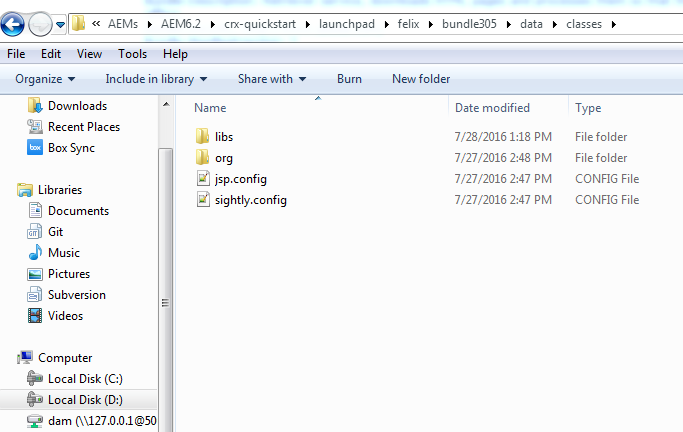
    Generated JSP java files are located at- [AEM_INSTALL_DIR]/crx-quickstart/launchpad/felix/bundle[BUNDLE_ID]/data/classes


    Source: For details read following article - http://labs.6dglobal.com/blog/2015-06-23/new-apache-sling-fs-classloader-console/

    2. Dependency finder- 

    Use the following link to know the maven dependency for a package-http://localhost:4502/system/console/depfinder

    3. Rebuilding clientlibs-

    Use following link to rebuild Client Libraries for CSS and JS-
    http://localhost:4502/libs/granite/ui/content/dumplibs.rebuild.html?rebuild=true


    4. Reecompile JSP

    Use following link to recompile all generated JSP Java files-
    http://localhost:4502/system/console/slingjsp 

    5. Auto Deploy UI Package


    mvn clean install -PautoInstallPackage

    For publish-  mvn clean install -PautoInstallPackagePublish -Daem.publish.host=localhost -Daem.publish.port=4503

    6. Auto Deploy Java Package


    mvn clean install sling:install


    7. Accessing repository through WebDav for Bulk uploads

    Following link describes detailed steps on how to access the AEM repository through WebDav-
    http://labs.6dglobal.com/blog/2016-05-11/webdav-transfers/

    8. AEM Companion App:

    Alternative to WebDav you can use AEM Companion App for Desktops. It is very helpful for managing DAM Assets directly from your system. Here is the link for documentation-
    https://docs.adobe.com/docs/en/aem/6-1/administer/integration/companion-app.html

    9. Grunt Integration with AEM-Maven Project

    http://labs.6dglobal.com/blog/2016-07-21/using-grunt-in-aem-maven/

    10. Monitoring/ Reporting

    Go to- http://localhost:4502/miscadmin#/etc/reports. Following tools are available- 

     11. Bulk Editor/ Searching pages based on Parameters

    12. Checking log files

    system/console/slinglog/tailer.txt?tail=500&name=/logs/error.log

    CDN | Clearing Cloudflare cache

    In order to clear Cloudflare cache automatically via code, follow below steps: 1. Develop Custom TransportHandler Develop a custom Trans...